


A nail salon POS migration checklist covers data transfer, service and technician setup, hardware testing, staff training, launch readiness, and post-launch checks. Confirm what can move from your current system, assign responsibility for each task, and verify the results before using the new POS with customers.
Switching your nail salon’s POS involves more than installing software. Plan how you will handle customer records, upcoming appointments, service settings, technician information, and historical records your salon still needs to access.
The exact process depends on your current POS, the new provider, and the information your salon needs to keep. Do not assume that every record, setting, or historical transaction will move automatically.
Use the checklist below to plan the switch with your provider, assign responsibilities, and verify that your team is ready to manage a normal salon day.
Start With This Nail Salon POS Migration Checklist
Organize the switch into three stages: before the switch, before launch, and after launch. Each stage should have a person responsible for completing the work and a clear way to confirm the result.
If you are still evaluating a nail salon POS system, use these requirements during your discussions with providers. A migration plan should reflect your salon’s actual records and workflow rather than a general promise that the setup will be easy.
Before the Switch
Before scheduling the change, confirm the scope of the migration and identify what your salon needs from both systems.
- List the information your salon currently uses.
- Separate records that need to transfer from records that can remain available for reference.
- Ask your current provider how you can export the required information.
- Ask the new provider which file formats and data fields it can accept.
- Confirm which settings must be recreated manually.
- Assign a salon contact and a provider contact.
- Choose a proposed launch date around your salon’s operating schedule.
- Clarify any migration, setup, or training costs before work begins.
- Confirm how you will access records from the previous system after the switch.
Write down the agreed scope. “Transfer customer data” is too broad if one person expects names and phone numbers while another expects visit history, notes, and future appointments.
A useful scope statement identifies the record type, required fields, transfer method, person responsible, and acceptance check.
Before Launch
Before staff begin using the new system with customers, verify both the information and the workflow.
- Review imported or manually entered customer records.
- Check upcoming appointments against the current schedule.
- Confirm service names, prices, and technician settings.
- Review access permissions for the people using the system.
- Test the equipment required for your approved setup.
- Walk through booking, check-in, service assignment, checkout, and reporting.
- Have staff practice the tasks they will perform.
- Confirm how changes made after the final export will be recorded.
- Establish a backup operating procedure.
- Complete a final readiness review with the people responsible.
An installation can be complete while important operating questions remain unresolved. Treat readiness as a separate decision.
For example, a workstation may be working correctly, but the salon may still need to verify appointments with a specific technician or confirm how a service change appears on a ticket.
After Launch
Once the new POS is in use, check that daily activity is being recorded as expected.
- Compare the appointment schedule with the source records.
- Review tickets for missing or duplicated services.
- Confirm technician assignments.
- Check daily totals against the relevant transaction and payment records.
- Record problems in one shared issue list.
- Assign someone to verify each correction.
- Review recurring staff questions and provide additional practice where needed.
- Confirm that necessary historical records remain accessible through the agreed method.
Keep the review focused on specific records and tasks. “The system looks fine” is less useful than confirming that a particular appointment, ticket, or report matches the expected result.
Confirm What Will Move to the New POS
Before preparing an export, decide what should happen to each category of information.
Some records may be suitable for import. Others may need to be entered manually, recreated as settings, or retained outside the new POS for reference. The correct approach depends on the capabilities of both systems and the condition of your source data.
If you have not finalized your choice, review how to choose a nail salon POS system alongside your migration requirements. The ability to handle the information your salon needs should be part of that decision.
Customer Records and Upcoming Appointments
Start with the customer information your staff needs to recognize clients and manage their visits.
Prepare a field list that may include:
- Customer name.
- Phone number.
- Email address, if used.
- Customer identifier from the old system.
- Relevant customer notes, where supported and appropriate.
- Upcoming appointment date and time.
- Booked services.
- Assigned technician.
- Appointment status.
Ask which fields can transfer and how they will appear in the new system. A field being present in an export does not guarantee that the new POS can import or display it in the same way.
Upcoming appointments deserve a separate check because they affect customers who are already expecting a visit.
For example, a client may have a manicure and pedicure booked with different technicians. Confirm whether the destination system can preserve that arrangement through the agreed transfer process or whether someone needs to recreate part of the appointment manually.
Review potential duplicate customers before combining records. Two entries with the same name may represent different people, while two entries with different spellings may belong to the same client.
Do not merge records based on a name alone.
Services, Technicians and Operating Settings
Treat your service menu and technician setup as configuration work that needs its own review.
Create an approved list of:
- Service names and categories.
- Current service prices.
- Service durations, where used.
- Add-ons and related options.
- Active technicians.
- Technician schedules or availability settings, where applicable.
- Service assignments.
- Turn-management rules your salon uses.
- Access permissions for owners, managers, and staff.
Confirm whether each item can be imported or must be configured separately.
For example, importing a list of technician names does not necessarily recreate their schedules, permissions, service assignments, or turn settings. Each of those items needs an explicit decision.
Use one approved version of the service menu during setup. If different employees provide different price lists, resolve those differences before configuration begins.
Keep unrelated menu changes separate where practical. If you change service names, prices, and operating rules during the migration, document those decisions so reviewers can distinguish intentional changes from setup errors.
Historical Records and Outstanding Balances
Historical information may require a different approach from active customer records and future appointments.
Ask how the migration will handle:
- Previous appointments.
- Completed tickets.
- Past sales reports.
- Technician activity records.
- Gift card records and outstanding balances, if used.
- Customer credits or other balances, if used.
- Records needed to investigate earlier transactions.
Do not assume that importing a customer list also transfers these records.
For each category, choose an agreed treatment: import it if supported, retain an export for reference, maintain access to the old system under confirmed terms, or use another documented method.
If your salon has outstanding gift cards or customer credits, identify how staff will verify and handle those obligations after launch. Confirm the opening amounts and the process for recording later use.
Avoid creating a second active balance without understanding what happens to the original record. Your plan should explain where the authoritative balance will be maintained and how staff will prevent duplicate use.
Record-retention and payment-related questions may require guidance from the relevant provider or professional adviser. This checklist organizes the migration process; it does not establish legal, tax, or accounting requirements.
Prepare and Check Your Data Before Import

Good preparation gives your salon and provider a clear reference for checking the transfer.
Keep an unchanged copy of the original export. Make any cleanup changes in a separate working copy so you can trace differences and return to the source when questions arise.
Do not treat a file opening successfully as proof that it is ready for import.
Confirm Export Formats and Field Mapping
Ask your current provider which export options are available and ask the new provider what it needs.
Confirm:
- Accepted file format.
- Required columns.
- Required and optional fields.
- Date and time format.
- Phone-number format.
- How services and technicians are identified.
- How appointment statuses will be matched.
- How duplicate records will be handled.
- What happens to fields the new system cannot accept.
- How rejected records will be reported.
Field mapping defines where each source field belongs in the destination system.
A simple mapping worksheet might look like this:
| Source field | Intended destination | Check required |
|---|---|---|
| Customer full name | Customer name | Confirm whether the name needs to be split into separate fields |
| Mobile phone | Customer phone | Verify formatting and missing digits |
| Appointment start | Appointment date and time | Confirm date interpretation and time zone |
| Employee name | Assigned technician | Match the correct active technician |
| Service description | Booked service | Match the approved service menu |
| Appointment status | Destination status | Confirm the agreed status mapping |
These are planning examples, not a statement that a particular POS supports every field.
Agree on how unresolved mappings will be handled before the final transfer. A missing technician match should be identified and reviewed rather than assigned arbitrarily.
Review Duplicates and Incomplete Records
Review the source data for issues that could affect the new setup.
Common items to check include:
- Duplicate customer entries.
- Missing or incomplete phone numbers.
- Different spellings of the same service.
- Inactive technicians mixed with active staff.
- Appointments without a service or assigned technician.
- Unclear date formats.
- Blank required fields.
- Records that appear more than once in the export.
Keep a short change log for cleanup decisions.
For example, if “Gel Mani” and “Gel Manicure” represent the same service in your salon, record the approved destination name. If they represent different services, preserve that distinction.
Do not fill missing information with guesses. Flag the record, determine whether the field is required, and agree on a supported way to handle it.
Also check how the working file displays values. A spreadsheet may interpret phone numbers or identifiers as numbers and change their formatting. Verify the actual values before handing the file to the provider.
Validate a Sample Before the Final Transfer
Ask whether a sample import or another preview method is available. If it is, use it to test representative records before moving the final dataset.
Choose a sample that includes ordinary records and situations that need extra attention, such as:
- A customer with more than one upcoming appointment.
- An appointment with multiple services.
- An appointment assigned to a specific technician.
- A customer whose record contains notes.
- A record with a recently corrected phone number.
- An outstanding balance, if that category is included in the agreed scope.
Compare the source information with the result in the new system.
Check counts as well as individual records. Counts help identify missing or extra entries, while record-level checks reveal problems that totals alone cannot show.
For example, matching appointment counts do not prove that all appointment times and technician assignments are correct.
Document what passed, what failed, and what needs another check. If a sample process is unavailable, agree on an alternative verification method before launch.
Set Up the New POS Around Your Salon’s Workflow
Once the transfer approach is clear, configure the new POS around the way customers and staff move through your salon.
The setup should support a complete visit, including situations that occur during busy hours. Reviewing isolated screens is not enough to confirm that the full process works.
Review Services, Prices and Technician Settings
Compare the configured service menu with the approved list.
Check that:
- Service names are recognizable to staff.
- Prices match the approved amounts.
- Categories are organized as intended.
- Durations are correct where scheduling uses them.
- Active technicians are included.
- Inactive technicians are handled as agreed.
- Relevant service assignments are correct.
- Staff permissions match their responsibilities.
Where the setup includes commission or other technician-specific rules, verify the agreed configuration separately. Do not assume that a technician record carries those settings over automatically.
Use a few representative examples rather than checking only the first item in each list.
For instance, review a basic service, an add-on, and a service with a different price or duration. Where technicians have different settings, include more than one technician in the check.
Have the salon owner or designated manager approve the final configuration.
Check Booking, Check-In and Turn Management
Walk through the arrival and service-assignment process your salon expects to use.
Test situations such as:
- A client arriving for an existing appointment.
- A walk-in customer requesting the next available technician.
- A customer requesting a particular technician.
- A client adding a service.
- A technician becoming temporarily unavailable.
- An appointment that needs a time or technician change.
For each scenario, identify the starting information, the staff action, and the expected result.
For example, when a booked customer arrives, staff should know how to find the correct appointment, confirm the services, and move the visit into the next stage of the salon’s workflow.
If your salon uses turn management, review the configured rules with the people who manage assignments. Confirm how staff should handle exceptions rather than leaving each employee to improvise.
Where online booking is part of the setup, include a booking created through that channel in your review. Confirm where it appears and how staff recognize it.
Verify Hardware, Checkout and Reports
Test the equipment approved for your specific setup.
Depending on the salon’s configuration, this may include a POS workstation, check-in tablet, printer, scanner, cash drawer, or payment terminal. Confirm supported models, connections, and setup responsibilities with the provider.
Test the complete checkout process using the provider’s approved testing procedure.
Review how staff will:
- Open the correct ticket.
- Confirm services and technician assignments.
- Review the amount due.
- Handle tips, discounts, or other adjustments where configured.
- Complete the supported payment workflow.
- Provide a receipt where required.
- Find the completed record afterward.
Do not create real charges simply to experiment with a terminal. Ask the payment provider how to verify the setup appropriately.
Then inspect the relevant reports. Confirm that the test activity appears where expected and that staff understand how testing records should be handled.
A report total alone is not enough. Open a representative record and verify that the details connect to the correct ticket and technician.
Review the Senverse POS demo to identify the booking, check-in, service assignment, and checkout steps you want to discuss before switching. Use those steps to prepare questions about your salon’s setup and staff training.
Train Staff With Real Salon Scenarios
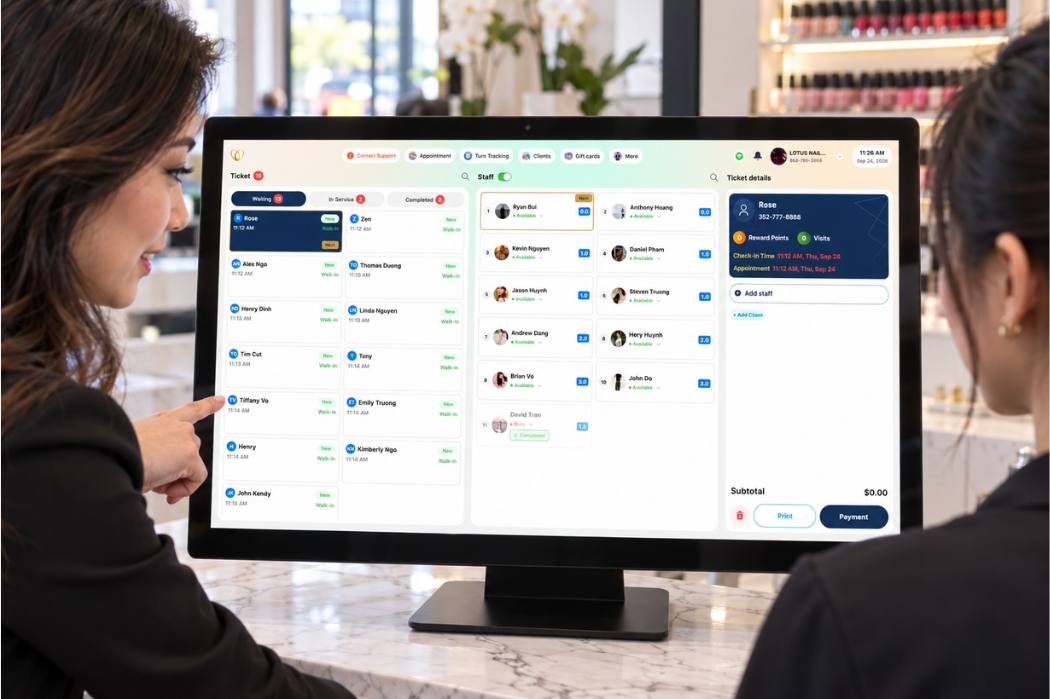
Train employees on the tasks they will perform during a normal shift.
A demonstration helps introduce the system, but staff also need an opportunity to complete the steps themselves. Use a training environment or another provider-approved practice method where available.
Keep the training focused on your salon’s configured workflow.
Practice Front-Desk Tasks
Front-desk practice should follow the order in which work arrives.
Have staff practice:
- Finding an existing customer.
- Checking whether a customer record already exists before creating another.
- Creating an appointment.
- Updating an appointment.
- Checking in a booked customer.
- Recording a walk-in visit.
- Confirming a requested technician.
- Finding the customer’s current service status.
- Communicating a change to the person managing assignments.
Use a complete scenario.
For example, a customer calls to move an appointment to a different time and asks to keep the same technician. The employee should practice locating the appointment, reviewing the requested change, applying it through the supported workflow, and confirming the final details.
Include a few situations that previously caused confusion in your salon. These examples help reveal whether employees understand the new process.
Practice Service Changes and Checkout
Have staff practice what happens when a visit changes after check-in.
Useful scenarios include:
- Adding a service.
- Removing a service that will not be performed.
- Changing the assigned technician.
- Reviewing a ticket involving more than one technician.
- Correcting an entry before payment.
- Completing checkout.
- Finding a completed ticket for review.
- Escalating a transaction that needs an authorized correction.
Use only actions supported by the configured system and the employee’s permissions.
For a shared ticket, staff should be able to verify which services belong to each technician before checkout. For a service change, they should confirm that the ticket reflects the services actually performed.
Employees should also know when to stop and ask for help. Knowing the correct escalation path is part of being ready to operate the system.
Assign a Contact for Questions and Issues
Designate one person at the salon to collect setup questions and coordinate with the provider.
Document:
- The salon’s main contact.
- The backup contact.
- The provider’s support channel.
- Confirmed support availability.
- The information staff should include when reporting a problem.
- Who can approve changes to settings.
A useful issue report describes the task, the affected record, the action taken, and what happened.
For example, “Appointment time is wrong” gives little context. A better report identifies the appointment, the expected time, the displayed time, and whether the issue affects other appointments.
Use approved support channels for customer or transaction information. Do not place sensitive details in a general staff discussion simply to make an issue easier to explain.
Plan the Cutover and Make a Go-Live Decision
The cutover is the point when your salon stops relying on the old system for active work and begins using the new one.
Set a clear boundary so staff know where to create appointments, update customer information, and record new activity.
Set the Final Data Cutoff
Choose a final export time and identify what happens to changes made afterward.
For example, if the final appointment export happens after closing but a customer books before the new system launches, someone must ensure that the appointment reaches the new schedule.
Your cutoff plan should answer:
- When will the final export be created?
- Who will create and deliver it?
- Who will verify the final import or manual entry?
- Can customers still make online bookings during the transition?
- Where will staff record new appointments or changes?
- Who will enter those changes into the new system?
- How will duplicate entry be prevented?
- When will the old system stop accepting active updates?
Keep a transition log for any activity that falls between the final export and launch.
Give each item a completion status so the person checking the schedule can confirm that it has been handled.
Complete a Go-Live Readiness Check
Hold a final review before the new POS becomes the primary system.
| Readiness area | Ready when | Reviewer |
|---|---|---|
| Customer records | Agreed fields and representative records have been checked | Assigned salon reviewer |
| Upcoming appointments | Dates, times, services, and technician assignments have been verified | Front-desk lead |
| Service menu | Approved names and prices match the setup | Owner or manager |
| Technician settings | Relevant assignments, schedules, and rules have been reviewed | Owner or manager |
| Hardware | Required devices complete their approved tests | Provider and salon contact |
| Checkout | Staff can complete and review the agreed checkout workflow | Authorized staff member |
| Reports | Representative activity appears as expected | Owner or manager |
| Staff training | Employees can perform their assigned tasks and know how to request help | Training lead |
| Final updates | Changes after the export cutoff have been accounted for | Migration contact |
| Backup procedure | Staff understand the temporary operating process | Manager |
Use a status such as Ready, Open Issue, or Not Applicable for each row.
Do not mark an item ready solely because someone plans to finish it later. Record the remaining action and decide whether it must be resolved before launch.
A small wording issue and a missing appointment schedule do not have the same operating impact. Assess open issues according to the work they affect.
Prepare a Backup Operating Plan
Agree on how the salon will continue handling essential work if the launch is interrupted.
The plan may include an approved way to:
- View upcoming appointments.
- Record customer arrivals.
- Track services and technician assignments.
- Record changes that need to be entered later.
- Contact the provider.
- Reconcile temporary records once normal operation resumes.
Payment interruptions require a procedure approved by the payment provider. Do not improvise by writing down card details or using an unapproved payment method.
Also decide who can pause the launch or change the operating plan.
Keeping the old system available for reference is different from allowing both systems to accept active updates. If a return to the previous system becomes necessary, coordinate how activity already recorded in the new system will be accounted for.
Review the First Days After Launch
The first days of live use provide a chance to verify the migration against actual salon activity.
Schedule short reviews around your salon’s workflow. Focus on records and tasks that could affect appointments, customer balances, technician assignments, or daily reconciliation.
Reconcile Appointments, Tickets and Daily Totals
Compare the new system’s records with the information your salon expected to see.
Review:
- Appointments carried over from the previous system.
- Bookings or changes made during the transition.
- Completed visits and their tickets.
- Services and add-ons.
- Technician assignments.
- Relevant payment records.
- Gift card or credit activity, if included in the setup.
- Daily reports.
When comparing totals, use the same dates, cutoff times, and reporting definitions. A report based on completed tickets may not match another report that includes open tickets or uses a different time boundary.
Investigate differences at the record level.
For example, if a daily total differs from the expected amount, identify the affected tickets and adjustments rather than changing a total to make the reports agree.
Keep migration corrections separate from normal activity where the system and workflow allow it. Staff should be able to explain what changed and why.
Track Issues and Confirm Corrections
Use one issue log so problems do not become scattered across conversations.
| Field | What to record |
|---|---|
| Issue ID | A unique reference |
| Date reported | When the issue was identified |
| Affected task or record | Appointment, customer, service, ticket, device, or report |
| Expected result | What should have happened |
| Actual result | What happened instead |
| Operating impact | Which work is affected |
| Assigned person | Who will coordinate the next action |
| Status | Open, in progress, awaiting review, or closed |
| Verification | Who checked the result and what they confirmed |
Close an issue only after someone verifies the correction.
For example, if a technician assignment has been corrected, confirm both the appointment display and any related workflow affected by that assignment.
Review recurring questions as well. Several employees asking the same question may indicate that a setting needs clarification or that the team needs another practice session.
Use This Migration Worksheet With Your POS Provider
Use the worksheet below during planning, setup, and the final readiness review.
The listed treatments are questions to resolve, not promises that a particular system can import each category.
| Migration item | Source or reference | Treatment to confirm | Responsible person | Acceptance check |
|---|---|---|---|---|
| Customer records | Current customer export | Supported fields, format, and duplicate handling | Assign before work begins | Compare record counts and representative customers |
| Upcoming appointments | Current appointment schedule | Import or manual entry; cutoff handling | Assign before work begins | Verify dates, times, services, and technicians |
| Service menu | Approved service list | Import or configuration | Assign before work begins | Compare names, categories, prices, and relevant durations |
| Technician records | Approved active staff list | Import or configuration | Assign before work begins | Confirm active staff and record matching |
| Schedules and assignments | Current operating settings | Recreate or transfer where supported | Assign before work begins | Review representative availability and service assignments |
| Turn-management settings | Salon’s agreed turn rules | Configure supported rules | Assign before work begins | Test ordinary assignments and agreed exceptions |
| Historical records | Exports or old-system access | Transfer, archive, or retain reference access | Assign before work begins | Confirm records can be retrieved through the agreed method |
| Gift cards or customer credits | Verified balance records, if applicable | Confirm supported treatment and opening amounts | Assign before work begins | Check individual records and prevent duplicate balances |
| Booking access | Current booking links and channels | Confirm transition steps | Assign before work begins | Verify a booking reaches the intended schedule |
| Hardware | Approved equipment list | Confirm compatibility, setup, and testing | Assign before work begins | Complete device and workflow tests |
| Checkout and payment setup | Provider-approved configuration | Confirm activation and test procedure | Assign before work begins | Complete the approved checkout test |
| Reports | Required daily review list | Configure and explain relevant reports | Assign before work begins | Trace representative activity into the report |
| Staff training | Role-based task list | Confirm training method and coverage | Assign before work begins | Staff complete their assigned practice scenarios |
| Final transition updates | Changes after the last export | Confirm entry and duplicate-prevention process | Assign before work begins | Every logged change has a verified status |
| Support and backup plan | Confirmed contact details and procedures | Document responsibilities and escalation | Assign before work begins | Staff know what to do and whom to contact |
Assign a person responsible and a due date for each item. Track progress using Pending, In Progress, Verified, or Not Applicable. Mark an item Verified only after the assigned reviewer completes the acceptance check.
For every important item, ask three questions:
- What exactly will happen to this information or setting?
- Who is responsible for completing the work?
- How will we confirm that the result is correct?
Those answers make the checklist usable during the transition.
Planning a Switch to Senverse?
Bring your migration worksheet, current service menu, and a list of the records your salon needs to a Senverse demo.
Use the conversation to review your daily workflow, discuss the information available from your current system, and confirm the scope of data transfer, setup, and staff training before scheduling the switch.
Include the situations that matter to your salon, such as upcoming appointments with specific technicians, walk-in assignments, service changes, shared tickets, and end-of-day review. Ask which steps can be demonstrated and which migration details require a separate assessment.
Book a Demo to discuss your salon’s workflow and the requirements for moving to Senverse.