

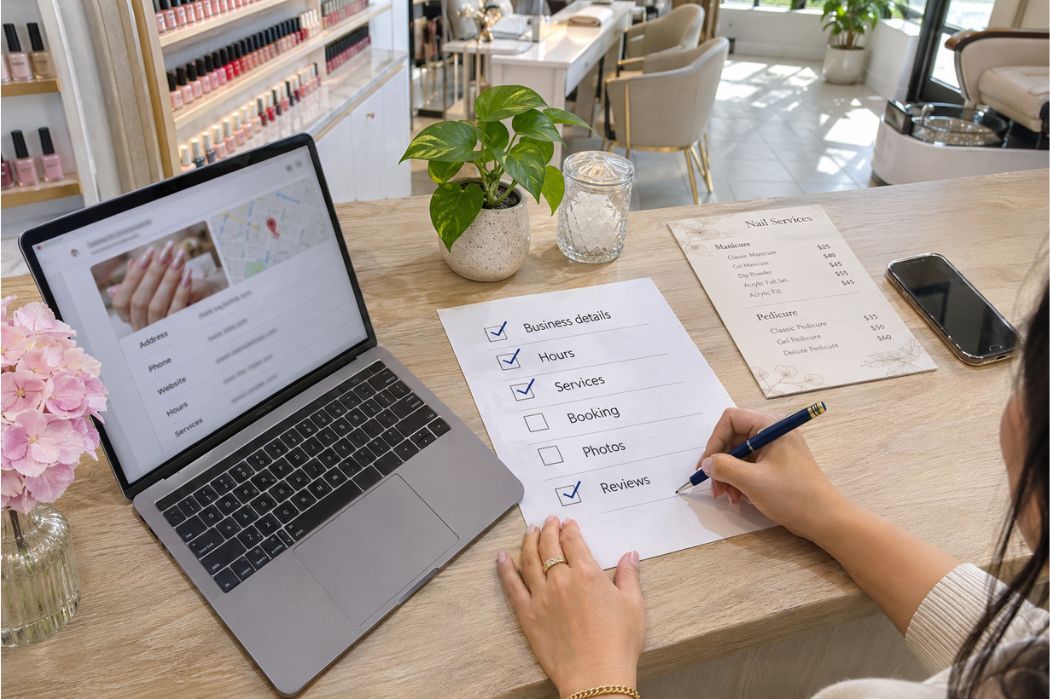
Use this nail salon Google Business Profile checklist to check whether clients can find accurate information about your salon, locate the right entrance, and reach your website or booking page.
The checklist covers 10 areas, from profile access and business details to services, photos, reviews, and performance tracking. Start with issues that prevent clients from finding, contacting, or booking with your salon.
Open your profile’s management controls and its public listing side by side. Record what needs attention, assign someone to follow up, and confirm what customers can see before marking an update complete.
Your 10-Point Profile Review Checklist
Work through the areas below, then use the detailed instructions in each section to resolve anything that needs attention.
| Review area | What to confirm |
|---|---|
| 1. Access and verification | You can manage the correct profile and have checked its verification status and notifications. |
| 2. Name and location | Your business name matches your real branding, and the address and map pin identify the correct salon. |
| 3. Categories | Your primary and additional categories accurately describe the business. |
| 4. Phone and hours | The phone number reaches your salon, and regular and special hours are accurate. |
| 5. Description and services | Your description, service list, and any published prices reflect your current offering. |
| 6. Website and booking links | Links lead to the correct salon and location, and the pages work on mobile. |
| 7. Photos and attributes | Photos represent the current salon, and selected attributes are accurate. |
| 8. Reviews | Your review link works, requests welcome honest feedback, and someone handles replies. |
| 9. Posts and offers | Published updates contain accurate details, valid offer dates, and working links. |
| 10. Changes and performance | Updates and unresolved tasks are logged, and available performance data has been reviewed. |
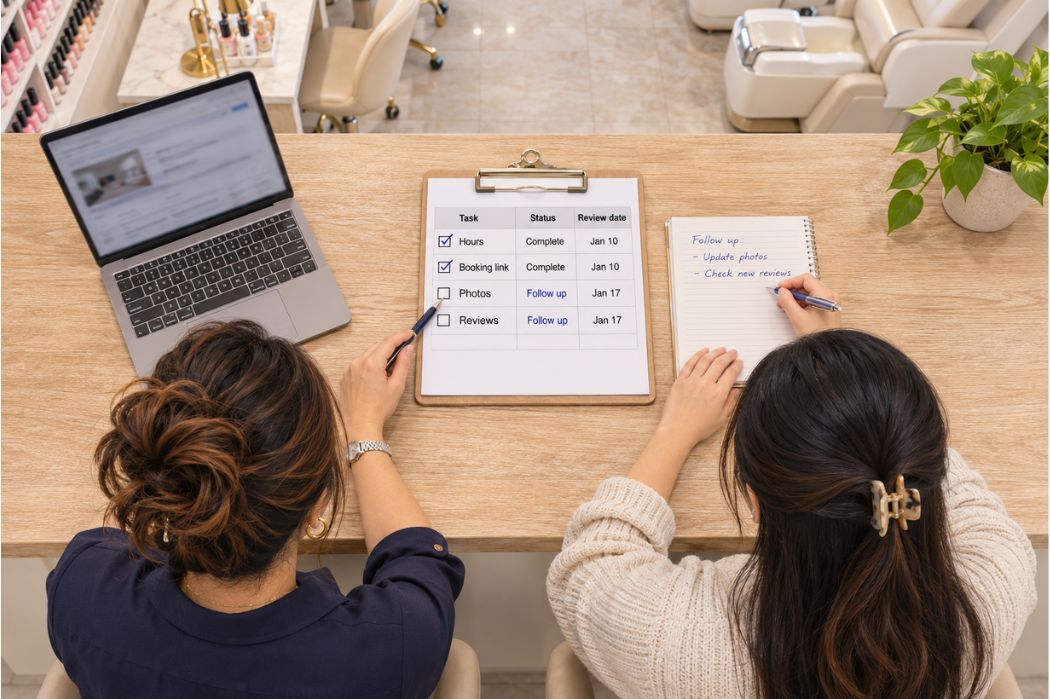
In your working task list, record the person responsible, review date, status, and next action for each area. Use consistent statuses: Not checked, Needs update, Awaiting review, or Complete.
If several areas need attention, your checklist can help define the support you need. Explore Senverse’s local SEO support for nail salons to discuss your priorities.
1. Confirm Profile Access and Verification
Make sure you can manage the Google Business Profile that represents your salon. Check the existing listing before creating another profile, especially if a former owner, employee, or marketing provider handled it.
Check the correct account and location
- Sign in with the Google Account used to manage the salon’s profile.
- Confirm the business name and address, especially if you manage multiple locations.
- Check for verification requests, restrictions, or unresolved notifications.
- Review who currently has access and identify anyone who no longer works with the business.
Resolve access or verification issues
- If someone else manages the profile, follow Google’s ownership or access process for the existing listing.
- If verification is required, follow the steps Google provides for your business.
- Give authorized team members their own profile access instead of sharing the owner’s password.
- Record any unresolved issue, the person responsible, and the next action.
How to verify: Confirm that you can open the correct profile’s management controls and review its current status. Separately, open the public listing to check what customers can see. Public visibility alone does not confirm that your account has management access.
If you cannot find the listing, use this guide to check why your nail salon may not appear on Google Maps before creating another profile.
2. Check Your Salon Name, Address, and Map Pin
Your profile should help first-time clients recognize your salon and find the correct location. Compare the published information with your storefront, website, and current contact details.
Use your real business name
- Use the name customers recognize from your signage and branding.
- Check for an outdated name left by a previous owner or an earlier rebrand.
- Do not add service keywords, city names, or phrases such as “best pedicure near me” unless they are genuinely part of your real-world business name.
Google’s business representation guidelines explain how to present your business name and location accurately.
Confirm the address and map pin
- Check the street number, street name, city, state, and ZIP code.
- Confirm the suite or unit number where applicable.
- Inspect the map pin to make sure it identifies your salon rather than a neighboring business.
- If the salon is inside a shopping center, check whether the address and location information help clients find the correct unit.
- Investigate any additional listing for the same salon before changing or removing it.
Example: If your salon occupies Suite 104 but the profile shows only the shopping center’s street address, confirm and add the applicable suite information. Include a current storefront photo so clients can recognize the entrance.
How to verify: Open the public listing in Google Maps and compare the name, address, and pin with the actual salon. After submitting a correction, check its status and confirm the published result before marking the task complete.
3. Review Your Primary and Additional Categories
Your primary category should describe the salon’s main business. Additional categories should reflect other business activities you actually provide, rather than every treatment on your menu.
Check your primary category
- Review the category currently selected in your profile.
- Compare it with the salon’s main activity and the services clients primarily visit you for.
- Choose the most specific available category that accurately represents the business.
- Use the category options Google provides rather than treating the field as a place to enter keywords.
Example: For a business focused on manicures, pedicures, and nail enhancements, check whether “Nail salon” is available and accurately describes its main activity.
Keep additional categories relevant
- Review each additional category against the services and business activities currently offered.
- Remove categories that no longer describe the salon.
- Do not add a category simply because a nearby competitor uses it.
- Use the services section to describe individual treatments such as gel manicures, acrylic fill-ins, or nail art where applicable.
Example: Offering a spa pedicure does not automatically mean a broader spa category accurately describes your business. Choose categories based on what the salon is, and use service entries to explain the treatments it offers.
How to verify: Compare your selected categories with your current business activities and service menu. If you submit changes, check their status and review the public listing before closing the task.
4. Update Phone Numbers, Business Hours, and Special Hours
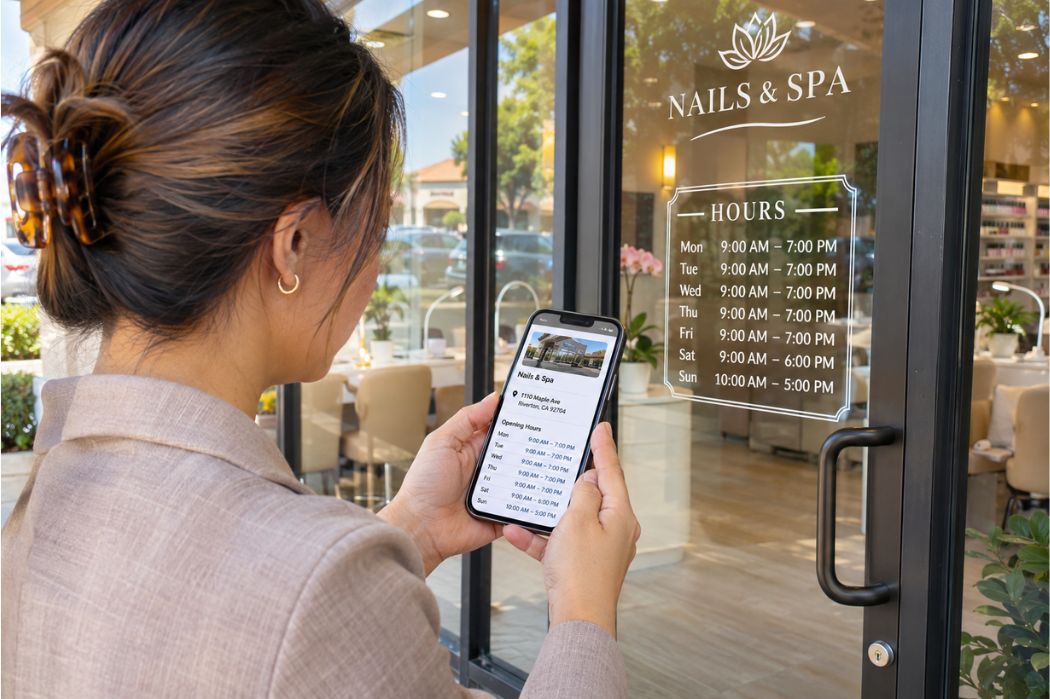
Make sure clients can reach the correct salon and see when it is open. Review these details whenever your phone number or operating schedule changes.
Test your published phone number
- Confirm that the number belongs to the correct salon location.
- Make a test call to check that it connects and reaches the intended front desk or phone system.
- Check that any recorded greeting identifies the salon accurately.
- Compare the number with your website and booking confirmation details to catch outdated information.
Review regular and special hours
- Check the opening and closing times for every day of the week.
- Confirm that regularly closed days are listed correctly.
- Review upcoming holidays and add special hours for adjusted schedules or closures.
- Update the profile when your regular operating schedule changes.
- Explain last-service times or appointment requirements on your website or booking page when needed, while keeping published business hours accurate.
Example: If your salon normally closes at 7 p.m. but will close at 3 p.m. on a holiday, set special hours for that date rather than changing the regular weekly schedule.
How to verify: Call the published number and open the public listing to review the weekly schedule. Check upcoming holiday dates separately, then confirm any submitted updates appear correctly.
5. Describe Your Salon and List Your Actual Services
Your business description should introduce the salon clearly, while your service list should help clients understand the treatments available. Review both against your current menu.
Write a clear business description
- Introduce your salon and its main services in natural language.
- Include relevant details about the salon’s history or approach only when accurate.
- Remove outdated information, unsupported awards, and claims such as “the best nail salon.”
- Avoid repeating service and location keywords throughout the description.
- Keep website links and promotion-focused content out of this field, following Google’s business description guidelines.
Match your service list to the current menu
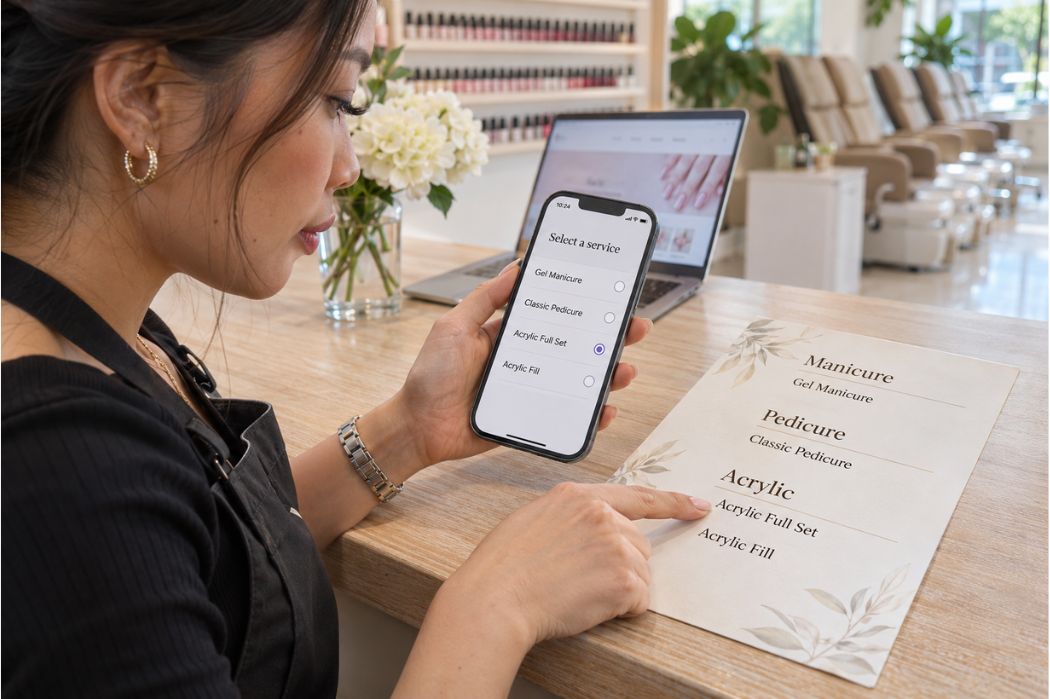
- List the treatments your salon currently offers, such as manicures, pedicures, gel polish, acrylic full sets, or fill-ins where applicable.
- Use service names clients can recognize and distinguish.
- Add brief descriptions where available to explain what a service includes.
- Remove discontinued treatments and correct duplicate or misleading entries.
- If you publish prices, confirm they are current and clarify what any starting price covers.
- Check that service details agree with your website and booking menu.
Example: If your salon offers both acrylic full sets and acrylic fill-ins, list them separately instead of using a single entry called “Acrylic Nails.” Where description fields are available, explain the difference so clients can choose the appropriate service.
How to verify: Ask the front desk to compare the public description and service list with the current menu. Flag missing treatments, unclear names, or price differences that would need clarification during a customer call.
6. Test Your Website and Booking Links
Open each published link as a client would. Confirm that it leads to the correct salon, works on mobile, and makes the next step clear.
Check your website destination
- Open the website link directly from your public Google Business Profile.
- Confirm that the page identifies the correct salon and location.
- For a business with multiple locations, check that clients can easily find information for the location they selected.
- Look for error pages, unexpected redirects, or outdated contact details.
- Check that service information, phone numbers, and booking options are easy to find on a phone.
Walk through the booking journey
- If a booking link is available, open it from the public profile.
- Confirm that it leads to the correct salon location and current booking system.
- Check that service names match your current menu.
- Follow the available steps far enough to identify confusing instructions or technical problems without submitting an unwanted appointment.
- Make sure clients can read any appointment policies before confirming a booking.
- If an incorrect link is managed by a third-party provider, use the appropriate management or support process to request a correction.
Example: After switching booking providers, your website may use the new system while your Business Profile still links to the old one. Test both destinations so clients do not reach an inactive calendar.
How to verify: Test the published links on a phone and record any error, wrong location, or step that prevents clients from continuing. After a correction, reopen the link from the public profile to confirm the result.
7. Review Your Salon Photos and Available Attributes
Review whether your photos help clients recognize the salon and understand what to expect. Check that selected attributes accurately describe the location and its facilities.
Use photos that reflect the current salon
- Storefront: Show the current business sign and the building clients should look for.
- Entrance: Help first-time visitors identify the correct door or unit, especially in a shopping center.
- Interior: Include clear views of the actual reception, manicure, or pedicure areas.
- Nail work: Show services performed at your salon, with permission where needed.
- Accuracy: Review owner-uploaded photos for old branding, discontinued services, or spaces that no longer represent the business.
Avoid stock photos or heavily edited images that could give clients a misleading impression of your salon.
Confirm the attributes available in your profile
- Review the attribute options shown in your profile’s management controls.
- Select only details you can confirm about the location.
- Check accessibility, amenities, and other available attributes with someone familiar with the premises.
- Update selections when the salon’s facilities or policies change.
- Do not assume every profile has the same attribute options.
Example: If your salon recently changed its storefront sign, upload a current exterior photo and review older owner-uploaded images. Clients should be able to recognize the business when they arrive.
How to verify: Compare the public photos and attributes with the salon as it is today. If a customer-contributed photo violates Google’s policies, use the reporting process; do not assume it can be removed simply because it is old or unflattering.
8. Check Your Review Request and Reply Process
Make it easy for clients to share honest feedback about their visit. Review the request they receive, test the review link, and confirm who handles incoming reviews.
Request reviews without influencing the rating
- Open your review link or scan your QR code to confirm that it leads to the correct salon’s review form.
- Use neutral wording that invites clients to describe their experience.
- Do not offer discounts, gifts, or other incentives in exchange for a review.
- Do not request a specific star rating or provide wording clients are expected to copy.
- Do not ask only satisfied clients for public reviews or direct unhappy clients away from leaving one.
Example request: “Thank you for visiting our salon. If you would like to share your experience, you can leave an honest Google review here: [review link].”
Follow Google’s review request guidance when preparing your message or QR code.
Assign responsibility for review replies
- Choose someone to check new reviews and coordinate responses.
- Write replies that address the feedback rather than repeating the same message every time.
- Keep responses professional when a client describes a disappointing experience.
- Invite the client to contact the salon privately when resolving the issue requires personal details.
- Do not disclose private customer information in a public reply.
- Use Google’s reporting process for reviews you believe violate its policies, rather than treating every negative review as removable.
How to verify: Review the actual message clients receive, test its destination, and read a sample of recent replies. Confirm that the process welcomes honest feedback without incentives, rating requests, or screening based on satisfaction.
9. Review Posts, Offers, and Outdated Information
Check whether your published updates still give clients accurate information. Focus on service availability, promotion dates, offer conditions, and the links clients use to take the next step.
Check posts and offer details
- Confirm that featured services are still available at the location shown.
- Review promotion start and end dates, including any dates written on images.
- Make sure offer conditions are clear, including eligible services and any restrictions.
- Check that promotional prices match the offer clients will receive.
- Use relevant photos that represent your salon and that you have permission to publish.
Test links and correct misleading content
- Open destination links and any available action buttons from the public profile.
- Confirm that booking links lead to the correct location and current booking system.
- Review older updates for information that could still confuse clients, such as an old phone number or a discontinued service.
- Correct or remove owner-managed content when necessary to prevent conflicting information.
- Do not remove an older post solely because of its age if it remains accurate and useful.
Example: An offer image says a pedicure promotion ends on November 30, but the linked page shows a different date. Align the details so clients can understand when the offer applies before booking.
How to verify: Read each current offer as a first-time client, then follow its link. Confirm that the service, dates, conditions, and destination agree across the post, image, and landing page.
10. Record Changes and Review Profile Performance
Keep a record of profile updates and review the available performance data. This helps your team follow up on unresolved work and understand how people interact with the listing.
Keep a simple change log
- Record the field or content item you reviewed.
- Describe the issue and the correction submitted.
- Note the submission date and person responsible.
- Track whether the update is pending, published, or needs further attention.
- Record when you checked the public listing and what still needs follow-up.
Example: “Booking link updated on November 6. Assigned to the salon manager. Recheck the public link and confirm that it opens the correct location.”
Interpret performance metrics carefully
- Record the date range for each review and compare equivalent periods.
- Check which metrics are available for your profile rather than expecting every metric to appear.
- Remember that calls count clicks on the call button, not confirmed phone conversations.
- Distinguish website clicks and direction requests from completed appointments or salon visits.
- Account for holidays, closures, promotions, and advertising when comparing results.
- Remember that Business Profile performance data can include activity from both organic results and Google Ads.
- Avoid attributing every increase or decrease to a single profile edit.
Use Google’s Business Profile performance guidance to understand the metrics shown in your account.
A search from one phone is not a complete ranking report. Google’s local ranking guidance explains that results depend mainly on relevance, distance, and how well-known a business is. Completing this checklist does not guarantee a particular position.
How to verify: Check that your change log reflects the current public listing. Save the reporting period alongside your performance notes, and use actual booking or salon records when evaluating completed appointments.
What Should You Fix First?
Start with issues that prevent you from managing the profile or stop clients from finding, contacting, or booking with your salon.
- Resolve access and profile status issues. Address ownership, verification, or restrictions through the appropriate process so you can manage the existing listing.
- Correct essential business details. Fix an inaccurate address, misplaced map pin, disconnected phone number, or incorrect opening hours.
- Repair website and booking links. Replace incorrect destinations and resolve problems that prevent clients from continuing.
- Update service information. Correct unavailable treatments, unclear service names, and outdated prices where published.
- Review supporting content. Work through photos, attributes, review requests, replies, and current offers.
- Assign follow-up tasks. Give unresolved items an owner and a review date, then confirm submitted changes on the public listing.
Example: If your salon has an outdated booking link and few recent photos, fix the booking link first. Clients already trying to make an appointment need a working destination before you add more images.
Keep a Maintenance Checklist for Your Salon
Use this schedule as a starting point and adjust it to your salon’s activity. These intervals are practical recommendations, not Google requirements or a ranking formula.
Update when something changes
- Business hours, holiday schedules, or planned closures.
- Phone numbers, website addresses, or booking links.
- Service availability and any prices you publish.
- Business branding, signage, or location details.
- Staff or provider access to the profile.
Check weekly
- New reviews that need a response or follow-up.
- Profile notifications and unresolved edits.
- Active offers approaching their end date.
Review monthly
- Run through all 10 areas of the checklist against the public listing.
- Retest website and booking links on mobile.
- Review photo accuracy and upcoming special hours.
- Record available performance data and the reporting period.
- Assign outstanding tasks and confirm whether earlier corrections were published.
Keep the checklist and change log where authorized team members can find them. Each unresolved item should have a clear next action, a person responsible, and a follow-up date.
Need Help With Your Nail Salon’s Google Business Profile?
Use your completed nail salon Google Business Profile checklist to identify what you can update and where you need support. Bring any unresolved access issues, inaccurate details, or booking problems to the discussion.
Senverse’s Local Boost service for nail salons can help you review your local presence and prioritize the next steps.
Request a consultation with Senverse to discuss your salon’s profile and local search needs.