

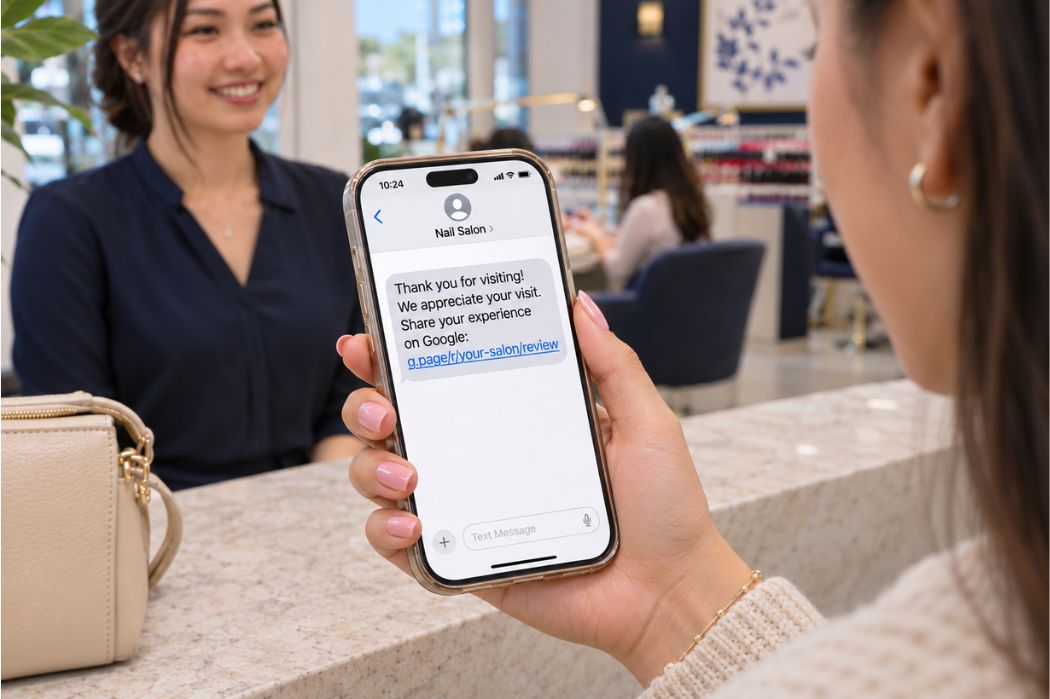
To get more Google reviews for a nail salon, make it easy for clients to share honest feedback after their visit. Build a consistent request into your checkout routine, provide a direct Google review link, and give clients the freedom to respond when it works for them.
Your team can ask briefly at the front desk, share a QR code, or send a follow-up message. If your POS supports integrated review requests, completing a ticket can also become the point at which your team sends an invitation.
This guide explains how to connect those options into a practical process, with scripts, message templates, and a checklist your front-desk team can use.
Build a Consistent Google Review Request Process
A useful review request process answers three questions: when should the invitation happen, how will the client access the review page, and who checks that the process is working?
- Prepare a review link for the correct salon location.
- Choose a natural point after the visit to invite feedback.
- Share the link through one suitable channel or offer a QR code.
- Assign someone to monitor new reviews and organize replies.
Make Review Requests Part of Your Checkout Routine
At a busy salon, a technician may finish a pedicure while the front desk handles a walk-in, a phone call, and another checkout. Review requests are easy to forget unless the team knows where they belong in that workflow.
Choose a clear handoff. For example, the front-desk employee completes checkout, confirms that the ticket is finished, and offers the client a review link. If a connected system sends the invitation, the employee checks that process instead of sending a second message.
- Define who handles the invitation during each shift.
- Keep the wording short enough to use during busy periods.
- Train backup staff to follow the same process.
- Make participation optional for the client.
Ask for Honest Feedback, Not a Specific Rating
Use the same neutral invitation regardless of how satisfied you expect a client to be. For example: “You’re welcome to share your experience on Google.” Let clients decide whether to respond, which rating to choose, and what to write.
Keep staff scripts and software settings aligned with Google’s review content policy. The “Google Review Request Mistakes to Avoid” section below explains the practices your team should avoid.
For the broader role of reviews alongside business details, service information, and local listings, explore Senverse’s local SEO support for nail salons.
Create and Test Your Google Review Link and QR Code
Prepare the destination before training staff or printing materials. One incorrect link can send clients to another branch or leave them searching for your salon again.
Get the Review Link for the Correct Salon Location
Use the review link provided by your Google Business Profile so clients can reach the correct salon’s review form without searching again.
- Sign in to the Google Account that manages your salon’s Business Profile.
- Open the profile for the location you want clients to review.
- Select Read reviews, then Get more reviews.
- Copy the review link and save it where authorized staff can find it.
- To download the QR code, use a computer browser, right-click the code, and select Save image as.
For a multi-location salon, label each saved link and QR code with its location. Check that your POS follow-up message, email template, and printed materials use the matching destination.
Google currently supports generating review QR codes on a computer browser. See Google’s instructions for creating and sharing a review link or QR code if the interface changes.
Test the Link Before Sharing It
Open the saved link on a phone and confirm that it identifies your salon correctly. Test the exact version placed in your message template, rather than relying only on the original copied link.
- Confirm the salon name and location.
- Check for missing characters or extra punctuation in the link.
- Make sure staff understand that clients may need to sign in.
According to Google’s review guidance, clients need a Google Account to leave a review. A Google Account does not have to use a Gmail address.
Place Your QR Code Where Clients Can Use It Easily
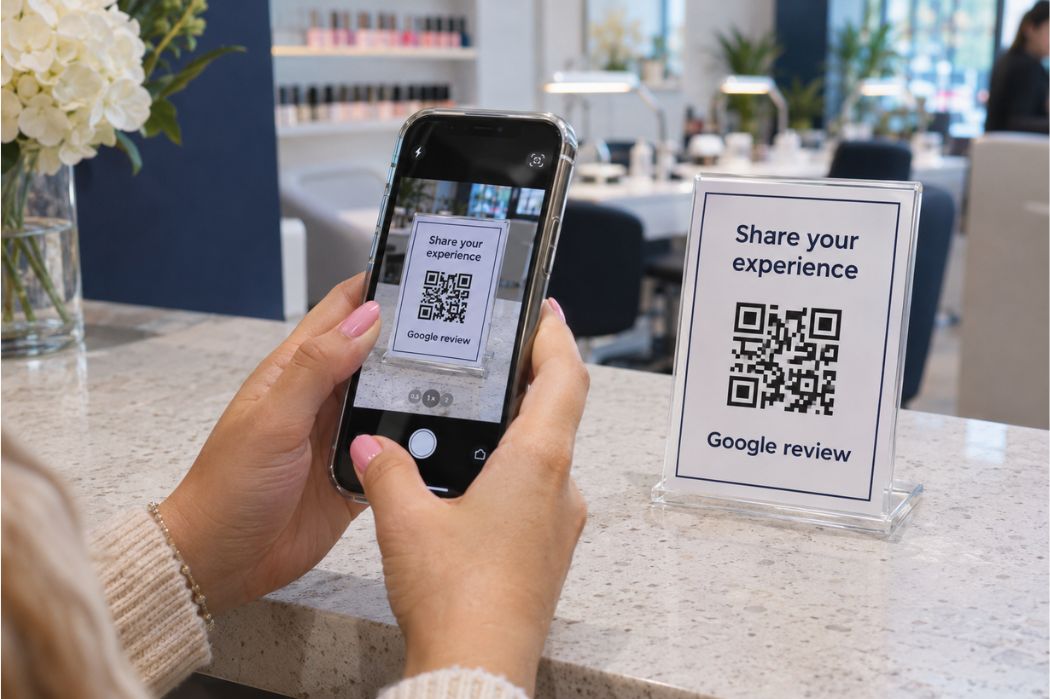
A small sign at the front desk, a receipt, or a thank-you card can give clients another way to reach the review page. Keep the code clear, use readable wording, and leave enough surrounding space for it to scan.
Print a sample and test it at the size and position clients will actually see. A code that works on your computer screen may be difficult to scan on a small or faded receipt.
When and How to Ask Nail Salon Clients for a Google Review
Choose an approach that fits the completed visit. Clients should not have to stop their checkout, remain at the counter, or respond immediately to help your salon.
Ask Briefly After Checkout
Once payment is complete and the client has what they need, offer a short invitation. Explain where the link is available, then allow them to leave without a follow-up question about whether they will review you.
For example, a receptionist can mention the QR card while handing over a receipt. The client can take the card and decide later whether to use it. This keeps the invitation separate from completing payment.
Send a Review Request Through Your POS After Completing a Ticket
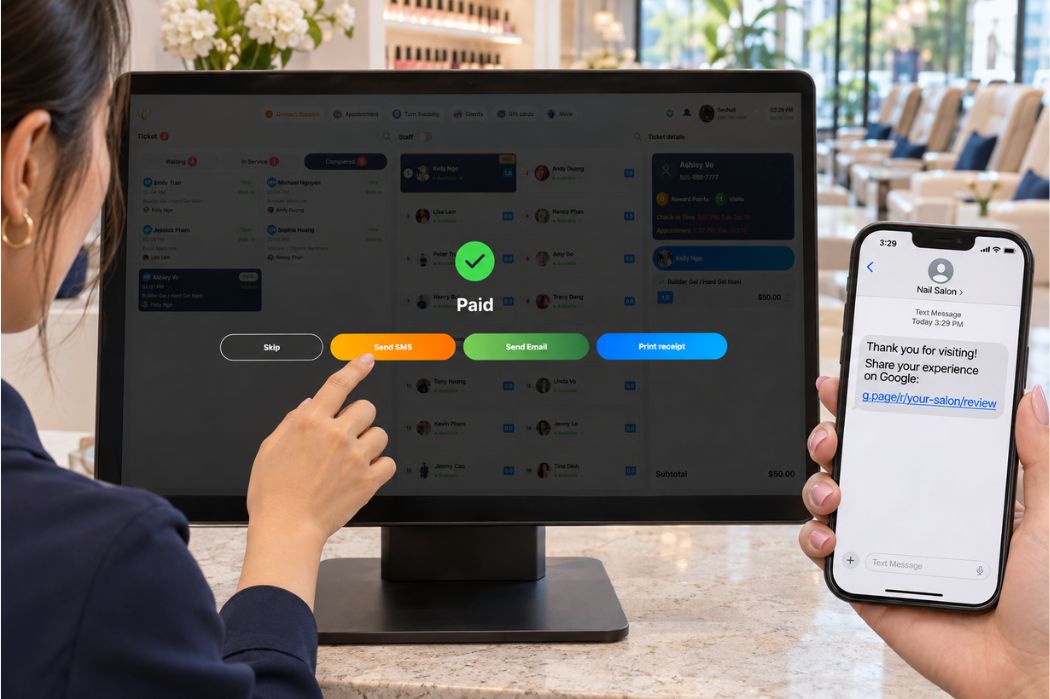
If your salon uses review software integrated with its POS, ticket completion can serve as the point for sending a post-visit review invitation. Depending on your setup, staff may send it manually or the software may send it automatically.
Before using this workflow, confirm:
- Trigger and timing: Which ticket status makes the invitation ready, and when is it sent?
- Sending method: Does an employee select an action, or does an enabled setting handle sending?
- Recipient and permissions: Is the ticket linked to the correct client, with appropriate messaging permissions and contact preferences?
- Message and destination: Does the invitation identify your salon and link to the correct location’s Google review form?
- Request history: How can staff check whether an invitation has already been sent?
For example, a client finishes a manicure and pedicure, pays, and has their ticket marked complete. The connected tool then sends—or lets the receptionist send—a thank-you message with the Google review link.
Test the sequence with your provider, including what happens when the same client returns. Confirm which steps your software supports and which require a staff handoff.
Offer an Email or QR Code as Another Option
If a POS follow-up is unavailable or does not match the client’s contact preferences, include the review link in a thank-you email or offer a printed QR card.
- Email: Make the review link easy to find in a short thank-you message.
- QR card: Let clients take the card and scan it whenever convenient.
- Receipt: Include a tested QR code with a brief invitation to share honest feedback.
Choose the option that fits your checkout routine and gives clients a convenient way to respond after their visit.
Google Review Request Templates for Nail Salons
Adapt these examples to your salon’s voice. Replace every placeholder before use, and keep the invitation separate from discounts, promotions, or requests for a specific rating.
A Short Front-Desk Script
“Thank you for visiting [Salon Name]. If you’d like to share your experience on Google, our review link is on this card. You can use it whenever it’s convenient.”
Staff can mention a receipt or follow-up message instead of a card, depending on where the client will actually find the link.
A Post-Visit Message Sent Through Your POS
Hi [Client First Name], thank you for visiting [Salon Name]. You’re welcome to share your experience in a Google review: [Google Review Link]. We appreciate your honest feedback.
Replace the placeholders and preview the message before enabling it. If your software does not support first-name personalization, use “Hi” instead. Keep any sender identification and opt-out wording required by your messaging provider.
A Thank-You Email Template
Subject: Thank you for visiting [Salon Name]
Hi [Client First Name],
Thank you for spending part of your day with us at [Salon Name].
If you’d like to share your experience, you can leave a Google review here: [Google Review Link]. Your honest feedback is appreciated.
Thank you,
The [Salon Name] Team
Keep the review link easy to identify. Avoid surrounding it with several booking, promotion, or social media buttons that compete for attention.
QR Card and Receipt Wording
Thank you for visiting [Salon Name].
Want to share your experience?
Scan to leave an honest Google review.
Pair this wording with a tested QR code. Avoid star graphics or headlines that tell clients which rating to choose.
Google Review Request Mistakes to Avoid
Review collection should preserve the client’s independent opinion. Check both staff instructions and software settings against Google’s policy before introducing a new process.
Offering Discounts, Gifts, or Rewards for Reviews
Do not offer a reward in exchange for posting, revising, or removing a Google review. Saying that the reward is available for any rating does not make an incentivized Google review acceptable.
Keep general salon promotions independent of whether someone leaves feedback. Staff should never ask clients to show a posted review to receive a benefit.
Sending Only Satisfied Clients to Google
Review gating happens when a business filters clients before inviting public reviews. For example, a survey sends people who select a high satisfaction score to Google while directing lower scores only to a private form.
A private support channel can help resolve concerns, but it should not serve as a filter that reserves Google invitations for positive experiences. Review any satisfaction-based routing in your software before enabling it.
Pressuring Clients or Writing Reviews for Them
Clients should choose whether to review and what to say. Do not ask them to finish a review before leaving, submit feedback on their behalf, or request that they include a technician’s name, a service keyword, or a particular phrase.
Avoid staff review quotas or incentives that encourage pressure at the counter. Train the team on respectful invitations rather than collecting a specified number of reviews.
Sending Duplicate or Repeated Requests
A client may receive the same invitation from your POS, a manual text, and an email if staff use separate processes. Assign one primary sending method and make the handoff clear.
- Use available sending records or an agreed staff handoff to check whether an invitation has already been sent.
- Set a repeat-visit rule so completing another ticket does not automatically mean sending another request.
- Respect a client’s decision to decline or stop receiving messages.
If your software cannot identify previous requests, agree on a manual check with your team before enabling recurring follow-ups.
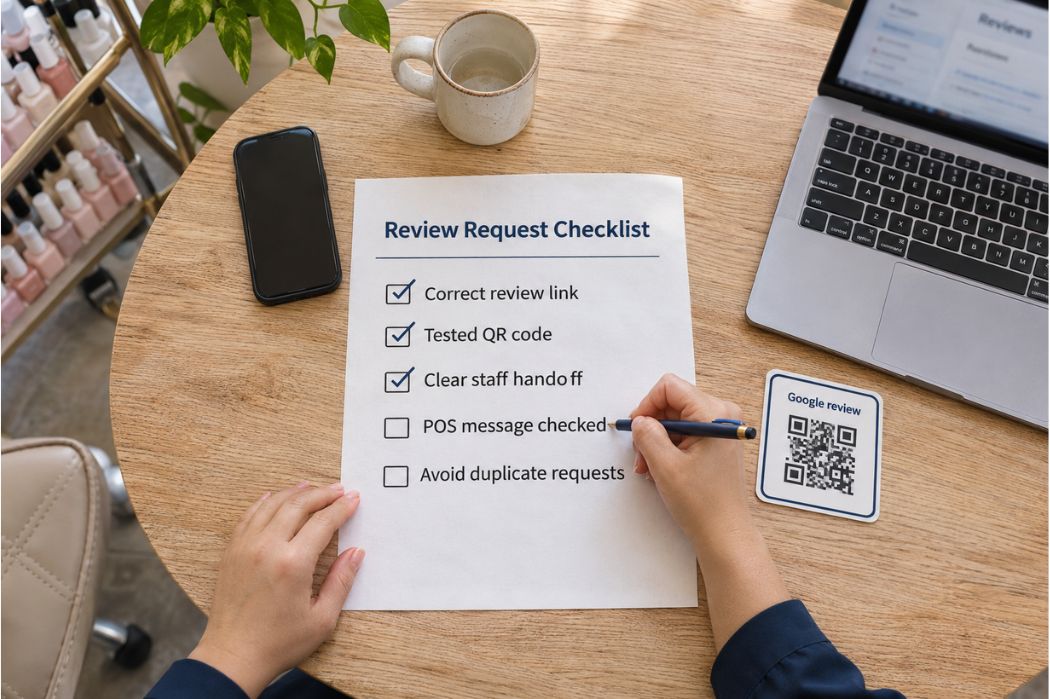
A Google Review Request Checklist for Your Front-Desk Team
Use this checklist when introducing the process or training an employee. The owner or manager can review the setup; front-desk staff can focus on the steps relevant to each visit.
- Correct destination: The review link belongs to this salon location.
- Working QR code: The printed code has been tested on a phone.
- Neutral wording: The invitation asks for honest feedback without requesting a rating.
- Clear responsibility: The employee responsible during the shift is identified.
- Completed visit: Staff know when checkout or ticket completion makes the invitation appropriate.
- Verified POS setup: If a connected tool is used, its sending method and timing have been tested.
- Appropriate contact: The recipient and messaging preferences have been checked.
- No duplicate request: Staff use available records or an agreed handoff to avoid sending again.
- No filtering or rewards: Invitations do not depend on expected satisfaction or an incentive.
- Review follow-up: A designated person reads new feedback and organizes replies.
Track Your Review Request Process and Respond to Feedback
Check whether the process is easy for staff and clients before adding more tools. A broken link or unclear responsibility is a practical issue your team can fix without increasing the number of messages.
Check Whether the Process Is Being Followed
During a routine review, ask staff where the handoff breaks down. Are invitations forgotten during busy shifts? Does a completed ticket trigger the expected action? Is a former employee’s template still using an outdated link?
- Retest links and printed QR codes after changes.
- Check sending or delivery information when the connected tool provides it.
- Note duplicate invitations or client concerns about messaging.
- Track new reviews and unanswered feedback using available information.
Do not assume that every new review came from a particular message. Unless your available data supports that connection, treat message activity and published reviews as separate observations.
Assign Someone to Read and Respond to Reviews
Choose an owner or manager to monitor feedback and approve sensitive replies. Keep responses relevant to what the reviewer shared, and avoid disclosing private client or appointment information.
When a review raises a service concern, pass it to the person who can investigate. A public reply can acknowledge the feedback and offer an appropriate contact route without arguing over personal details.
Frequently Asked Questions
Can a Nail Salon Ask Clients for Google Reviews?
Yes. Invite clients to share a genuine experience voluntarily. Keep the request neutral and avoid incentives, pressure, selective positive-review requests, or instructions about what the review must contain.
Can I Send a Google Review Request Through My POS?
Yes, if your POS includes review messaging or connects to review software. Depending on the setup, completing a ticket may trigger an invitation automatically or make it available for staff to send. Use the POS workflow checklist above to verify your setup before enabling it.
Can I Offer a Discount in Exchange for a Google Review?
No. Google prohibits incentives for reviews, including rewards offered regardless of the rating. Keep discounts and gifts separate from requests to post, change, or remove a review.
Do Clients Need a Google Account to Leave a Review?
Yes. Clients must sign in to a Google Account. They can use a Google Account associated with a non-Gmail email address.
Should I Ask Only Clients Who Say They Are Happy?
No. Do not use a satisfaction answer to decide who receives the Google review invitation. Make the opportunity available consistently and let clients choose whether and how to respond.
Build a Consistent Review Request Process With Senverse
Senverse Local Boost helps nail salons develop a consistent approach to requesting reviews and responding to customer feedback.
To discuss your salon’s process, bring your Google Business Profile link, current review request message, and checkout workflow—including any review software connected to your POS.